


 From the last couple of days you would have noticed that an image appearing next to address bar in my blogger template website.
Trending
- Samsung Galaxy S3 Pros and ConsPosted just now...
Showing posts with label Blogger Template. Show all posts
Showing posts with label Blogger Template. Show all posts
Jun 15, 2009
How to add a Favicon in blogger Template
From the last couple of days you would have noticed that an image appearing next to address bar in my blogger template website.May 12, 2009
How to Add a Label to your Post in Blogger Template Blog
Labeling a post is very useful feature for Bloggers as it helps in indexing your blog post by search engines like Google and Bing. A label is a keyword (or a group of keywords) attached to a post so that It will be easier for search engines like Google to categorize your blog / post.
How to add label to a blog post:
Step 1: Go to the Template > Page Elements tab, or just click the Layout link on your Dashboard.
Step 2: Click the Edit link on the “Blog Posts” widget.
1. In the configuration window, you’ll see an option to display the labels with each post. You can change the text used for this if you like, but the most important part is to have this option checked.
2. Save your changes, and view your blog to see your labels.
In case the labels attached to your post are not displayed , either switch to a default Blogger template (i.e. Minima White) or consult the template designer.
Can I revert to my default template options? Yes, Follow the procedure below:
Step 1: Go to the Template > Edit HTML tab.
Step 2: Click the Revert widget templates to default link.
Step 3: Click OK in the confirmation message.
Step 4: Go back to the Template >Page Elements tab and check the settings again, as above.
While writing a new post you should attach labels to your post otherwise they will not be displayed even after making above changes. At the bottom of Post edit window there is a option Labels that lets you assign labels to your post.
How to add label to a blog post:
Step 1: Go to the Template > Page Elements tab, or just click the Layout link on your Dashboard.
Step 2: Click the Edit link on the “Blog Posts” widget.
1. In the configuration window, you’ll see an option to display the labels with each post. You can change the text used for this if you like, but the most important part is to have this option checked.
2. Save your changes, and view your blog to see your labels.
In case the labels attached to your post are not displayed , either switch to a default Blogger template (i.e. Minima White) or consult the template designer.
Can I revert to my default template options? Yes, Follow the procedure below:
Step 1: Go to the Template > Edit HTML tab.
Step 2: Click the Revert widget templates to default link.
Step 3: Click OK in the confirmation message.
Step 4: Go back to the Template >Page Elements tab and check the settings again, as above.
While writing a new post you should attach labels to your post otherwise they will not be displayed even after making above changes. At the bottom of Post edit window there is a option Labels that lets you assign labels to your post.
How to display adsense ads in posts
Displaying adsense ads after post title can increase your CTR(Click through rate) as has been done in Digital Inspiration. CTR rate plays a very important role in fixing your adsense revenue. Here is the easiest procedure to display adsense ads:
Step1: Log in to your adsense account from the Dashboard and generate HTML code.
Step2: Convert this normal HTML code into a Parsed adsense code because normal HTML code can not be inserted in the xml template. There are 2 methods of parsing your adsense code.
First: Automatic parsing of code using a software/website. It can be done using AdParser or Centricle.com
Second: Do it manually as explained below:
Replace <with < etc...
Step 3: After parsing, your adsense ad code should look like this:
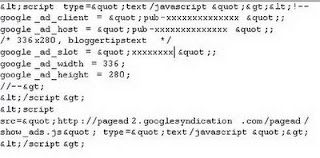 Step 4: To Set the Alignment of your adsense ads , append adsense code as below:
<div style=”float: left; width: auto; height: auto;”>Step1: Log in to your adsense account from the Dashboard and generate HTML code.
Step2: Convert this normal HTML code into a Parsed adsense code because normal HTML code can not be inserted in the xml template. There are 2 methods of parsing your adsense code.
First: Automatic parsing of code using a software/website. It can be done using AdParser or Centricle.com
Second: Do it manually as explained below:
Replace <with < etc...
Step 3: After parsing, your adsense ad code should look like this:
Step 4: To Set the Alignment of your adsense ads , append adsense code as below:Cut and paste your Parsed Adsense Code Here
</div>
Replace "left" with "center" or "right" for desired alignment.
Step 5: Log in to your dashboard Go to Layout> Edit HTML
Click on "Expand Widget Template" and Download your template in case you want to revert to original template.
Step 6: Adsense ads can be displayed in different locations:
1.Below post header/title
2.At the end of Post Body
1. How to display ads below Post Header/title:
-Scroll down/Find the following code line:
-Scroll down/Find the following code line:
<data:post.body/>
Here is the XML code which i have used in my XML(Minima White)template:
<div class='post-header-line-1'>
<span class='post-comment-link'>
<b:if cond='data:blog.pageType != "item"'>
<b:if cond='data:post.allowComments'>
<a class='comment-link' expr:href='data:post.addCommentUrl' expr:onclick='data:post.addCommentOnclick'><b:if cond='data:post.numComments == 1'>1 <data:top.commentLabel/><b:else/><data:post.numComments/> <data:top.commentLabelPlural/></b:if></a>
</b:if>
</b:if>
</span> <span class='reaction-buttons'>
<b:if cond='data:top.showReactions'>
<table border='0' cellpadding='0' cellspacing='0' width='100%'><tr>
<td class='reactions-label-cell' nowrap='nowrap' valign='top' width='1%'>
<span class='reactions-label'>
<data:top.reactionsLabel/></span> </td>
<td><iframe allowtransparency='true' class='reactions-iframe' expr:src='data:post.reactionsUrl' frameborder='0' name='reactions' scrolling='no'/></td>
</tr></table>
</b:if>
</span> </div>
<div class='post-body entry-content'>
Paste Your Parsed Adsense code here(To wrap below Post title)
<data:post.body/>
<div style='clear: both;'/> <!-- clear for photos floats -->
</div>
<center><div>
Paste Your Parsed Adsense code here(To wrap in end of Post)
<div class='post-footer'>
Apr 14, 2009
How to display HTML code in a blogger template Blog
How to display HTML Code in your blogger post.If you paste your HTML code in your post(Compose Mode) then it will not be displayed.To display it first you have to encode it into a form which could be displayed.Do it fast at centricle.com and paste the encoded text directly in the compose mode and it will be displayed correctly.
Apr 6, 2009
How to Embed Comment Form Below Post in Blogger Blog
 Now you can embed the comment form below the blogger post.Means you can embed i.e insert the form to comment below the posts in blogger blog.Embedded Comment form(Right)gives a very professional look and its easy for readers to comment.Earlier it was only available in word press now its been introduced by blogger(Beta Version).How to embed the comment form below post?Here is the step by step process:
Step 1: Log in to you blogger account from draft.blogger.com instead of blogger.com.Then Go to settings in draft.blogger.com and then comments.
There look for the option shown in picture below:

Set the Comment Form Placement to embeded below post and save it.If you are using template by google without making editing then embed comment form below post in blogger will work.If you are using a customized template then follow this step below:-
Got to Layout then Edit HTML and then click on Expand Widgets-Now search for below code in your html section-
<b:if cond='data:post.allowComments'> <a expr:href='data:post.addCommentUrl' expr:onclick='data:post.addCommentOnclick'><data:postCommentMsg/></a> </b:if>
Now replace the above code in red with the following code in blue
<b:if cond='data:post.embedCommentForm'> <b:include data='post' name='comment-form'/> <b:else/> <b:if cond='data:post.allowComments'> <a expr:href='data:post.addCommentUrl' expr:onclick='data:post.addCommentOnclick'><data:postCommentMsg/></a> </b:if> </b:if>
Its Done Now. Save It and Check Your Blog.The comment form below post is embedded making your blog look beautiful.
In case you don't find the comment form embedded below the post thenFollow this step: Search for
In case you don't find the comment form embedded below the post thenFollow this step: Search for
<b:include data='post' name='comments' />
<b:include data='post' name='comment-form'/>
It's now done now and you will see the comment form is inserted below each post.

